# Fullstack App With TypeScript, PostgreSQL, Next.js, Prisma & GraphQL: Authentication
URL: https://www.prisma.io/blog/fullstack-nextjs-graphql-prisma-3-clxbrcqppv
Published: 2022-01-28
Authors: Mahmoud Abdelwahab, Alex Ruheni
Tags: education
Series: Building a fullstack app using TypeScript, PostgreSQL, Next.js, GraphQL and Prisma
Description: Learn how to build a fullstack app using TypeScript, PostgreSQL, Next.js, GraphQL, and Prisma. In this article, you will learn how to add authentication and authorization to your application using Auth0
This article is the third part of the course where you build a fullstack app with Next.js, GraphQL, TypeScript, Prisma
and PostgreSQL. In this article, you will learn how to add authentication to your app.
## Table of Contents [#table-of-contents]
* [Introduction](#introduction)
* [Development environment](#development-environment)
* [Clone the repository](#clone-the-repository)
* [Seed the database](#seed-the-database)
* [Project structure and dependencies](#project-structure-and-dependencies)
* [Authentication and securing the GraphQL API using Auth0](#authentication-and-securing-the-graphql-api-using-auth0)
* [Configure Auth0](#configure-auth0)
* [Add the Auth0 SDK](#add-the-auth0-sdk)
* [Secure the GraphQL API](#secure-the-graphql-api)
* [Sync Auth0 users with the app's database](#sync-auth0-users-with-the-apps-database)
* [Expose `localhost:3000` using Ngrok](#expose-localhost3000-using-ngrok)
* [Define an API route for creating new users](#define-an-api-route-for-creating-new-users)
* [Create links – auth protected page](#create-links--auth-protected-page)
* [Bonus: protecting pages based on the user role](#bonus-protecting-pages-based-on-the-user-role)
* [Summary and next steps](#summary-and-next-steps)
## Introduction [#introduction]
In this course, you will learn how to build "awesome-links", a fullstack app where users can browse through a list of curated links and bookmark their favorite ones.
In [part 2](https://www.prisma.io/blog/fullstack-nextjs-graphql-prisma-2-fwpc6ds155), you built the GraphQL API using GraphQL Yoga and Pothos. You then used Apollo Client to consume the GraphQL API on the frontend.
## Development environment [#development-environment]
To follow along with this tutorial, ensure you have [Node.js](https://nodejs.org/en/download/package-manager) and the [GraphQL extension](https://marketplace.visualstudio.com/items?itemName=GraphQL.vscode-graphql) installed. You will also need a PostgreSQL database running.
If you're following along from part 2, you can skip project setup and jump into the [authentication and securing the GraphQL API using Auth0](#authentication-and-securing-the-graphql-api-using-auth0) section.
> Note: You can set up PostgreSQL [locally](https://www.prisma.io/docs/orm/v7/more/troubleshooting/nextjs) or a hosted instance on [Heroku](https://dev.to/prisma/how-to-setup-a-free-postgresql-database-on-heroku-1dc1). You will need a remote database for the deployment step at the end of the course.
## Clone the repository [#clone-the-repository]
You can find the [complete source code](https://github.com/prisma/awesome-links) for the course on GitHub.
> Note: Each article has a corresponding branch. This way, you can follow along as you go through it. You'll have the same starting point as this article by checking out at [part-3 branch](https://github.com/prisma/awesome-links/tree/part-3). There might be a few differences between each branch, so to not run into any issues, it is recommended that you clone the branch for this article.
To get started, navigate into the directory of your choice and run the following command to clone the repository:
```shell
git clone -b part-3 https://github.com/prisma/awesome-links.git
```
Navigate into the cloned application and install the dependencies:
```shell
cd awesome-links
npm install
```
## Seed the database [#seed-the-database]
After setting up a PostgreSQL database, rename the `env.example` file to `.env` and set the connection string for your database. After that, run the following command to create the tables in your database:
> Refer to [Part 1 – Add Prisma to your Project](https://www.prisma.io/blog/fullstack-nextjs-graphql-prisma-oklidw1rhw#add-prisma-to-your-project) for more details on the format of the connection string.
```shell
npx prisma migrate dev --name init
```
If `prisma migrate dev` did not trigger the seed step, run the following command to seed the database:
```shell
npx prisma db seed
```
This command will run the `seed.ts` file in the `/prisma` directory. `seed.ts` creates four links and one user in your database using Prisma Client.
You can now start the application server by running the following command:
```shell
npm run dev
```
### Project structure and dependencies [#project-structure-and-dependencies]
The project has the following folder structure:
```txt
awesome-links/
┣ components/
┃ ┣ Layout
┃ ┗ AwesomeLink.tsx
┣ data/
┃ ┗ links.ts
┣ graphql/
┃ ┣ types/
┃ ┣ builder.tsx
┃ ┗ schema.ts
┣ lib/
┃ ┣ apollo.ts
┃ ┗ prisma.ts
┣ pages/
┃ ┣ api/
┃ ┃ ┗ graphql.ts
┃ ┣ _app.tsx
┃ ┣ about.tsx
┃ ┗ index.tsx
┣ prisma/
┃ ┣ migrations/
┃ ┣ schema.prisma
┃ ┗ seed.ts
┣ public/
┣ styles/
┃ ┗ tailwind.css
┣ .env.example
┣ .gitignore
┣ next-env.d.ts
┣ package-lock.json
┣ package.json
┣ postcss.config.js
┣ README.md
┣ tailwind.config.js
┗ tsconfig.json
```
This is a Next.js application that uses the following libraries and tools:
* [Prisma](https://www.prisma.io/) for database access/CRUD operations
* [Next.js](https://nextjs.org) as the fullstack React framework
* [TailwindCSS](https://tailwindcss.com) for styling
* [Pothos](https://pothos-graphql.dev) as the GraphQL schema construction library
* [GraphQL Yoga](https://the-guild.dev/graphql/yoga-server) as the GraphQL server
* [Apollo Client](https://www.apollographql.com/docs/react) as the GraphQL client
The `pages` directory contains the following files:
* `index.tsx`: fetches links from the API and displays them on the page. The results are paginated and you can fetch more links.
* `_app.tsx`: root component that allows you to persist layouts and state when navigating between pages.
* `/api/graphql.ts`: GraphQL endpoint using Next.js's [API routes](https://nextjs.org/docs/pages/building-your-application/routing/api-routes).
## Authentication and securing the GraphQL API using Auth0 [#authentication-and-securing-the-graphql-api-using-auth0]
### Configure Auth0 [#configure-auth0]
To secure the app, you will use [Auth0](https://auth0.com) – an authentication and authorization drop-in solution.
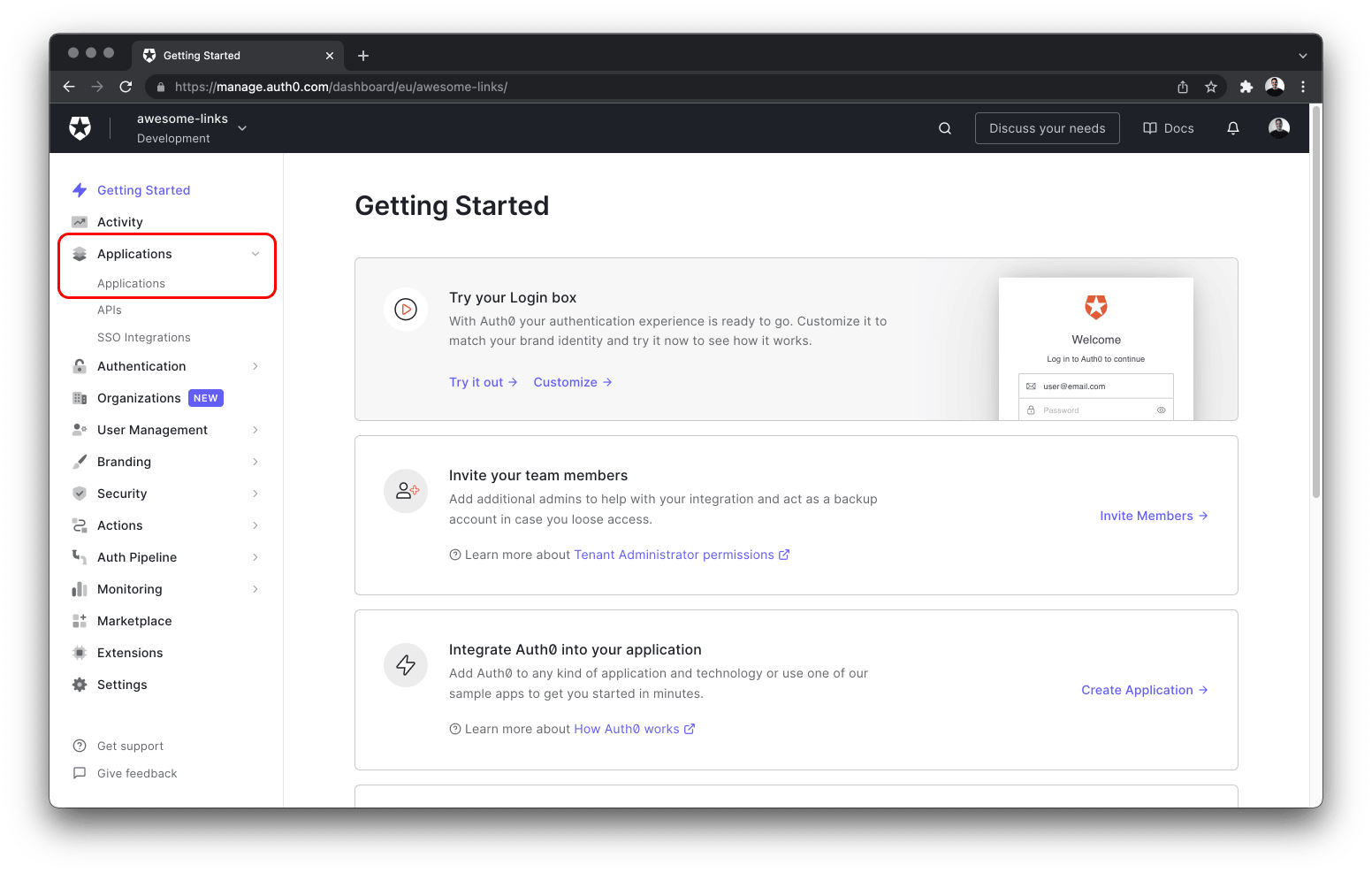
After [creating an account](https://auth0.com/signup), navigate to the **Applications** dropdown located on the left sidebar and select **Applications** from the sub-menu.
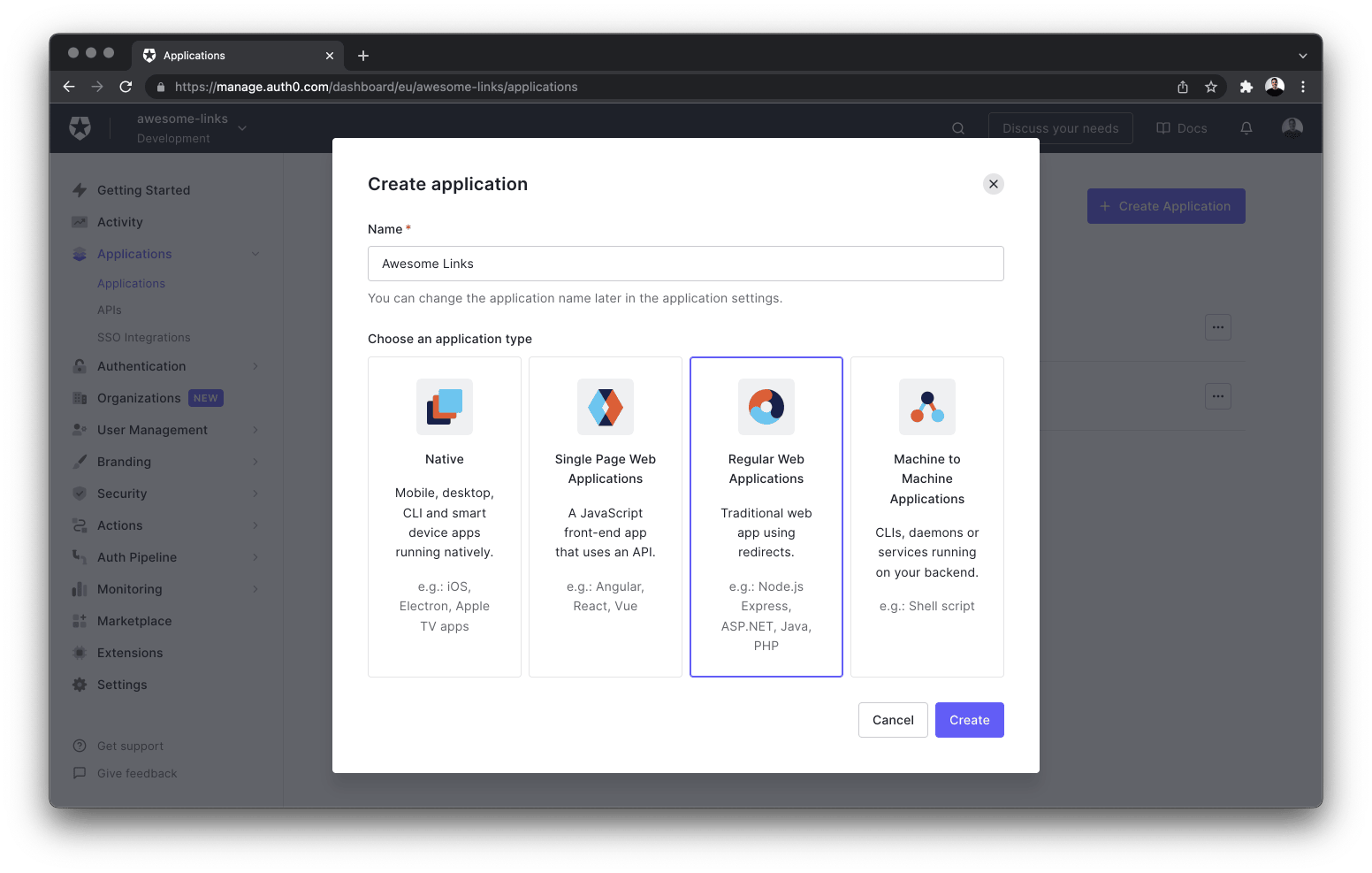
Next, create a new application by clicking the **+ Create application** button. Give your app a name, select **Regular Web Application** and finalize creating the app by selecting the **Create** button on the bottom right of the dialog.
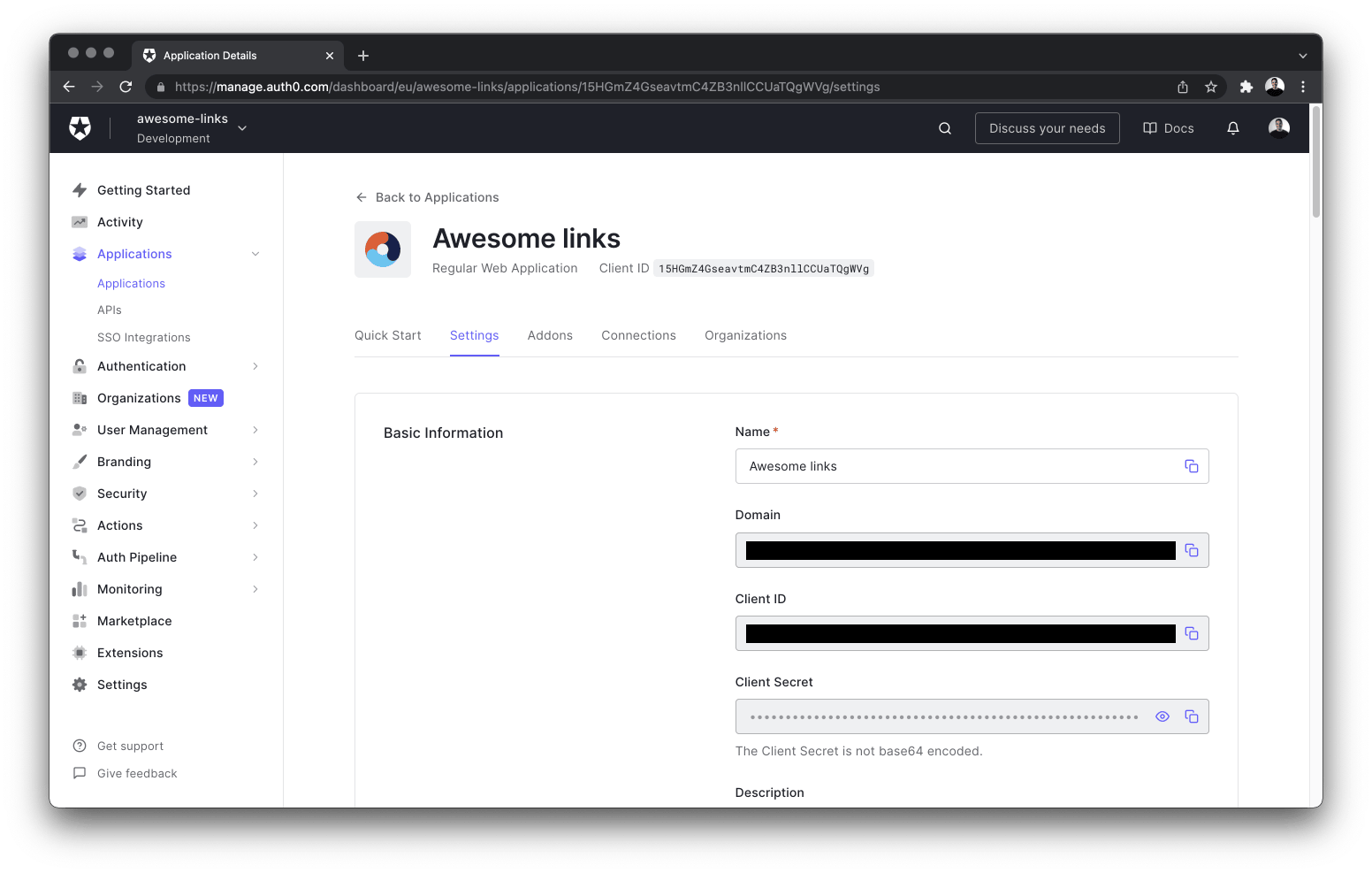
Once the application is successfully created, navigate to the **Settings** tab and copy the following information to the `.env` file of your project:
* Domain
* Client ID
* Client Secret
```shell
# .env
AUTH0_SECRET='...' # run `openssl rand -hex 32` to generate a 32 bytes value
AUTH0_BASE_URL='http://localhost:3000'
AUTH0_ISSUER_BASE_URL='https://YOUR_APP_DOMAIN'
AUTH0_CLIENT_ID='YOUR_CLIENT_ID'
AUTH0_CLIENT_SECRET='YOUR_CLIENT_SECRET'
```
* `AUTH0_SECRET`: A long secret value used to encrypt the session cookie. You can generate a suitable string by running `openssl rand -hex 32` in your terminal.
* `AUTH0_BASE_URL`: The base URL of your application.
* `AUTH0_ISSUER_BASE_URL`: The URL of your Auth0 tenant domain.
* `AUTH0_CLIENT_ID`: Your Auth0 application's Client ID.
* `AUTH0_CLIENT_SECRET`: Your Auth0 application's Client Secret.
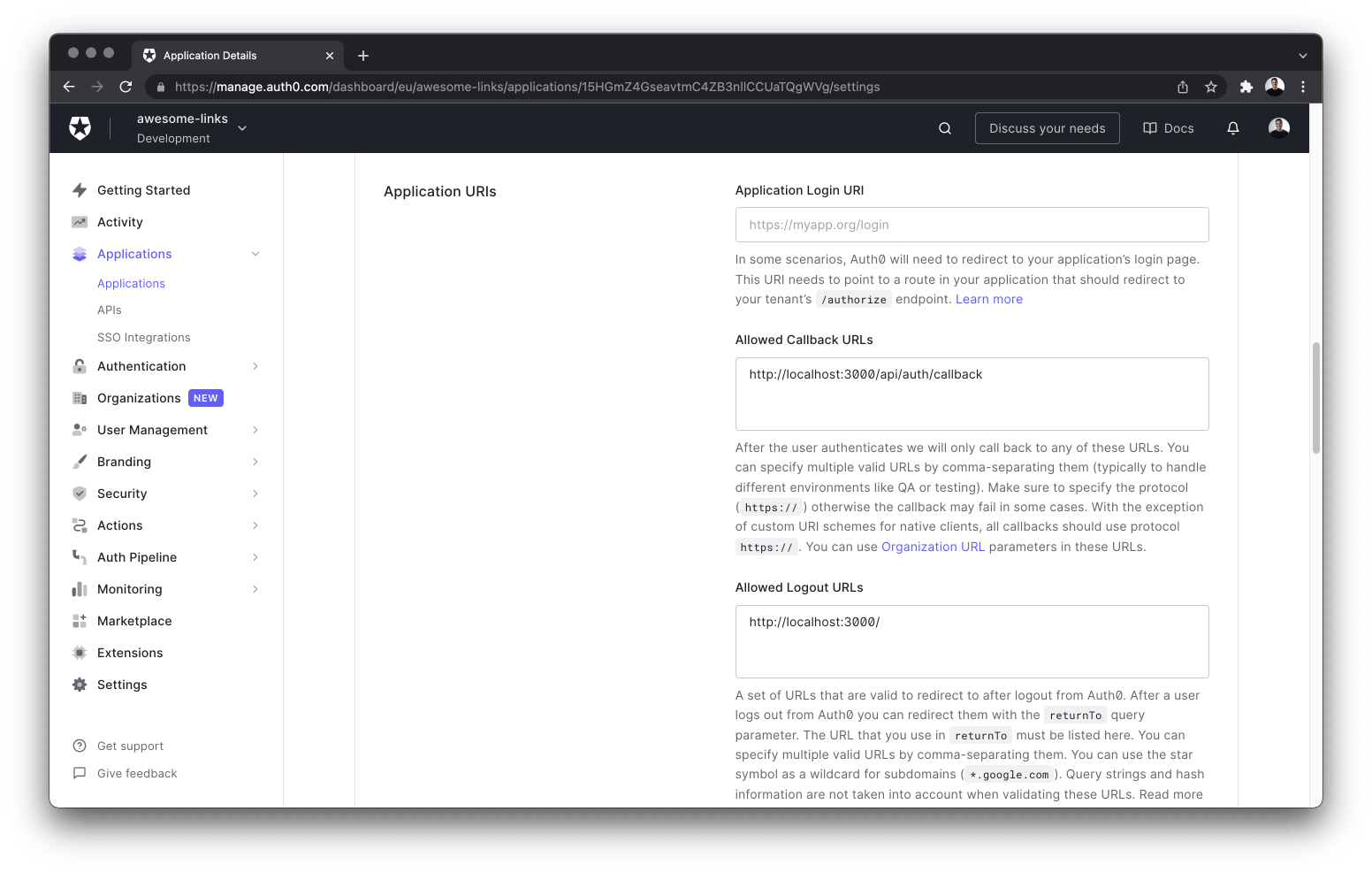
Finally, you need to configure some of the application's URIs in the Auth0 dashboard. Add `http://localhost:3000/api/auth/callback` to the **Allowed Callback URLs**, and `http://localhost:3000` to the **Allowed Logout URLs** list.
Save these configuration changes by clicking the **Save Changes** button at the bottom of the page.
When you're deploying your app to production, you can replace `localhost` with your deployed app's domain. Auth0 allows multiple URLs, so you can include both `localhost` and production URLs – separated by a comma.
### Add the Auth0 SDK [#add-the-auth0-sdk]
You can add Auth0 to your project by installing the [Auth0 Next.js SDK](https://github.com/auth0/nextjs-auth0):
```shell
npm install @auth0/nextjs-auth0
```
Next, create an `auth/[...auth0].ts` file inside the `pages/api` directory and add the following code to it:
```ts
// pages/api/auth/[...auth0].ts
import { handleAuth } from '@auth0/nextjs-auth0'
export default handleAuth()
```
This [Next.js dynamic API route](https://nextjs.org/docs/routing/dynamic-routes#catch-all-routes) will automatically create the following endpoints:
* `/api/auth/login`: Auth0's login route.
* `/api/auth/logout`: The route used to logout the user.
* `/api/auth/callback`: The route Auth0 redirects the user to after a successful login.
* `/api/auth/me`: The route to fetch the user profile from Auth0.
Finally, navigate to the `pages/_app.tsx` file and update it with the following code that wraps your app with the `UserProvider` component from Auth0:
```tsx
// pages/_app.tsx
import '../styles/tailwind.css'
import { UserProvider } from '@auth0/nextjs-auth0/client'
import Layout from '../components/Layout'
import { ApolloProvider } from '@apollo/client'
import type { AppProps } from 'next/app'
import apolloClient from '../lib/apollo'
function MyApp({ Component, pageProps }: AppProps) {
return (
)
}
export default MyApp
```
Wrapping the `MyApp` component with the `UserProvider` component will allow all pages to access your user's authentication state.
### Secure the GraphQL API [#secure-the-graphql-api]
When sending queries or mutations to the API, you can authenticate the requests by including the user information. You can do that by attaching a `user` object – from Auth0 – to the GraphQL context.
Create a `graphql/context.ts` file and add the following snippet:
```ts
// graphql/context.ts
import { getSession } from '@auth0/nextjs-auth0'
import type { NextApiRequest, NextApiResponse } from 'next'
export async function createContext({ req, res }: { req: NextApiRequest, res: NextApiResponse }) {
const session = await getSession(req, res)
// if the user is not logged in, return an empty object
if (!session || typeof session === 'undefined') return {}
const { user, accessToken } = session
return {
user,
accessToken,
}
}
```
The `getSession()` function from Auth0 returns information about the logged-in user and the access token. This data is then included in the GraphQL context. Your queries and mutations can now access the authentication state.
Update the server instance with the `context` property with the `createContext` function as it's value:
```ts
diff // pages/api/graphql.ts
import { createYoga } from 'graphql-yoga'
import type { NextApiRequest, NextApiResponse } from 'next'
import { schema } from '../../graphql/schema'
+import { createContext } from '../../graphql/context'
export default createYoga<{
req: NextApiRequest
res: NextApiResponse
}>({
schema,
+ context: createContext,
graphqlEndpoint: '/api/graphql'
})
export const config = {
api: {
bodyParser: false
}
}
```
Next, update the `SchemaBuilder` function in `graphql/builder.ts` by specifying the type for the `Context` object:
```ts
diff // graphql/builder.ts
import SchemaBuilder from "@pothos/core";
import PrismaPlugin from '@pothos/plugin-prisma';
import type PrismaTypes from '@pothos/plugin-prisma/generated';
import prisma from "../lib/prisma";
import RelayPlugin from "@pothos/plugin-relay";
+import { createContext } from './context'
export const builder = new SchemaBuilder<{
PrismaTypes: PrismaTypes,
+ Context: ReturnType,
}>({
plugins: [PrismaPlugin, RelayPlugin],
relayOptions: {},
prisma: {
client: prisma,
}
})
builder.queryType({
fields: (t) => ({
ok: t.boolean({
resolve: () => true,
}),
}),
});
```
Finally, the app's navbar should display a **Login**/**Logout** button depending on the user's authentication state. Update the `Header` component in `components/Layout/Header.tsx` with the following code:
```tsx
// components/Layout/Header.tsx
import React from 'react'
import Link from 'next/link'
import { useUser } from '@auth0/nextjs-auth0/client'
const Header = () => {
const { user } = useUser()
return (
)
}
export default Header
```
The `useUser` hook from Auth0 checks whether a user is authenticated or not. This hook runs client-side.
If you have done all the previous steps correctly, you should be able to sign up and login to the app!
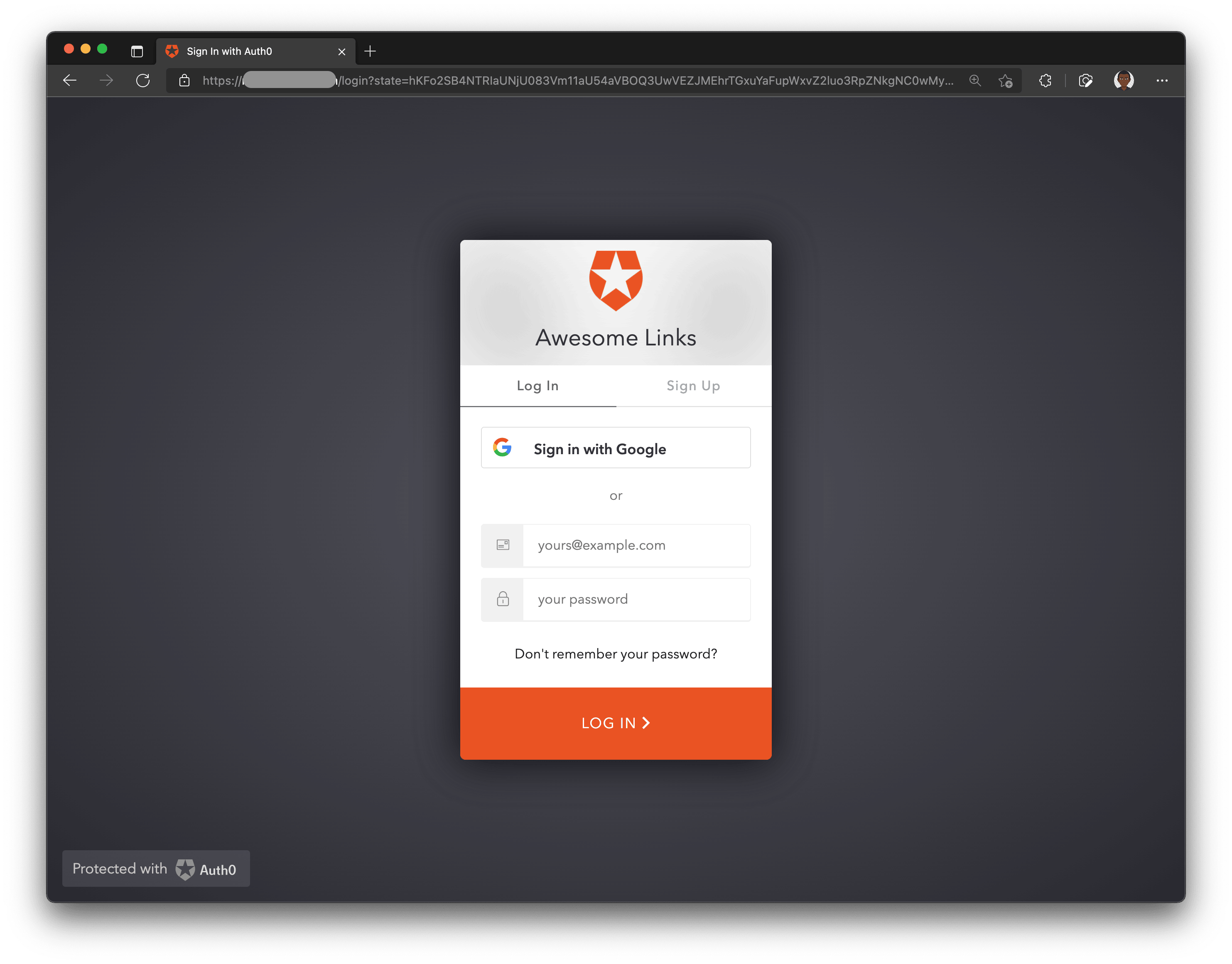
> Note: If you want to only allow authenticated requests to your GraphQL API, you can use the [`withApiAuthRequired`](https://github.com/auth0/nextjs-auth0/blob/main/EXAMPLES.md#protect-an-api-route) function from Auth0 to secure it.
### Sync Auth0 users with the app's database [#sync-auth0-users-with-the-apps-database]
Auth0 only manages users on your behalf and doesn't allow storing any data except the user's auth information. Therefore, whenever a user logs into your application the first time, you need to create a new record with the user information in your database.
To achieve that, you will leverage [Auth0 Actions](https://auth0.com/docs/actions). Auth0 Actions are serverless functions that can execute at certain points during the Auth0 runtime.
You will define an API route that will receive the information sent from the Auth0 Action during the login process and save the information to your database. This pattern of creating an API endpoint to listen to events from a third party service is called a [webhook](https://sendgrid.com/blog/whats-webhook/).
To get started with Auth0 Actions, navigate to the **Actions** dropdown located in the left sidebar, select **Flows** and choose **Login**.
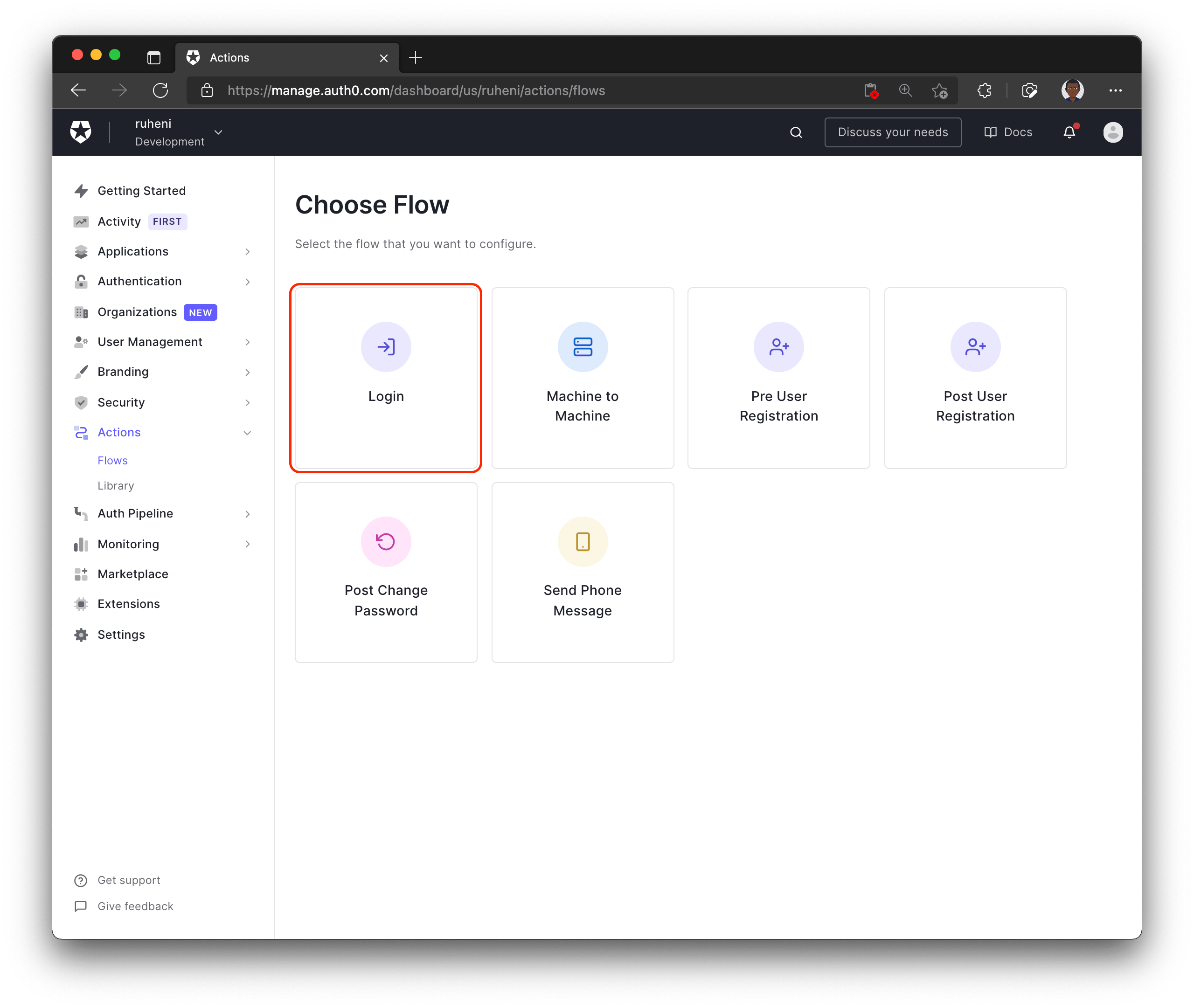
Next, to create a new Action, click the **+** icon and choose **Build custom**.
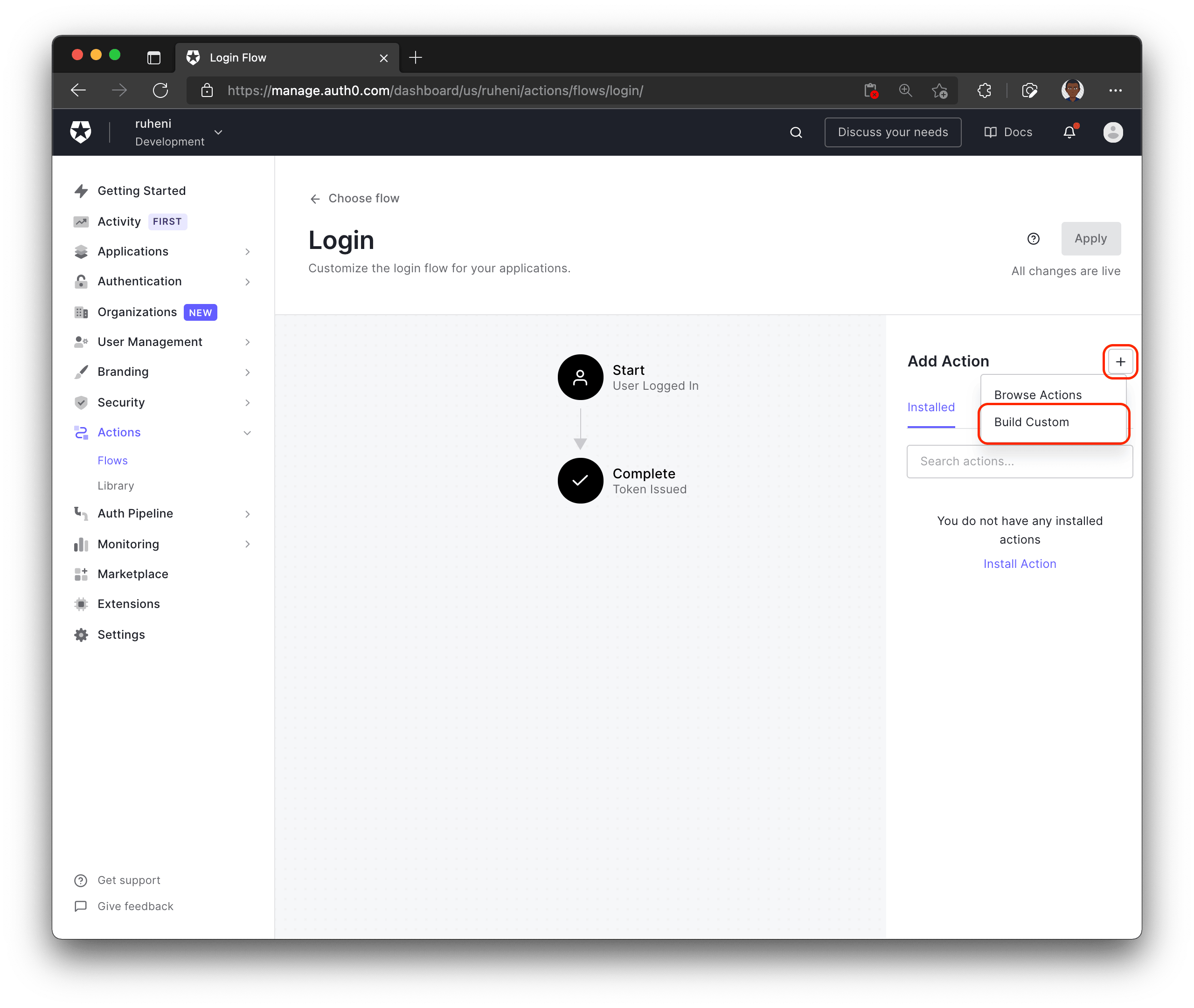
Pick a name for your custom Action, for example, "Create DB User" and complete the process by selecting **Create**.
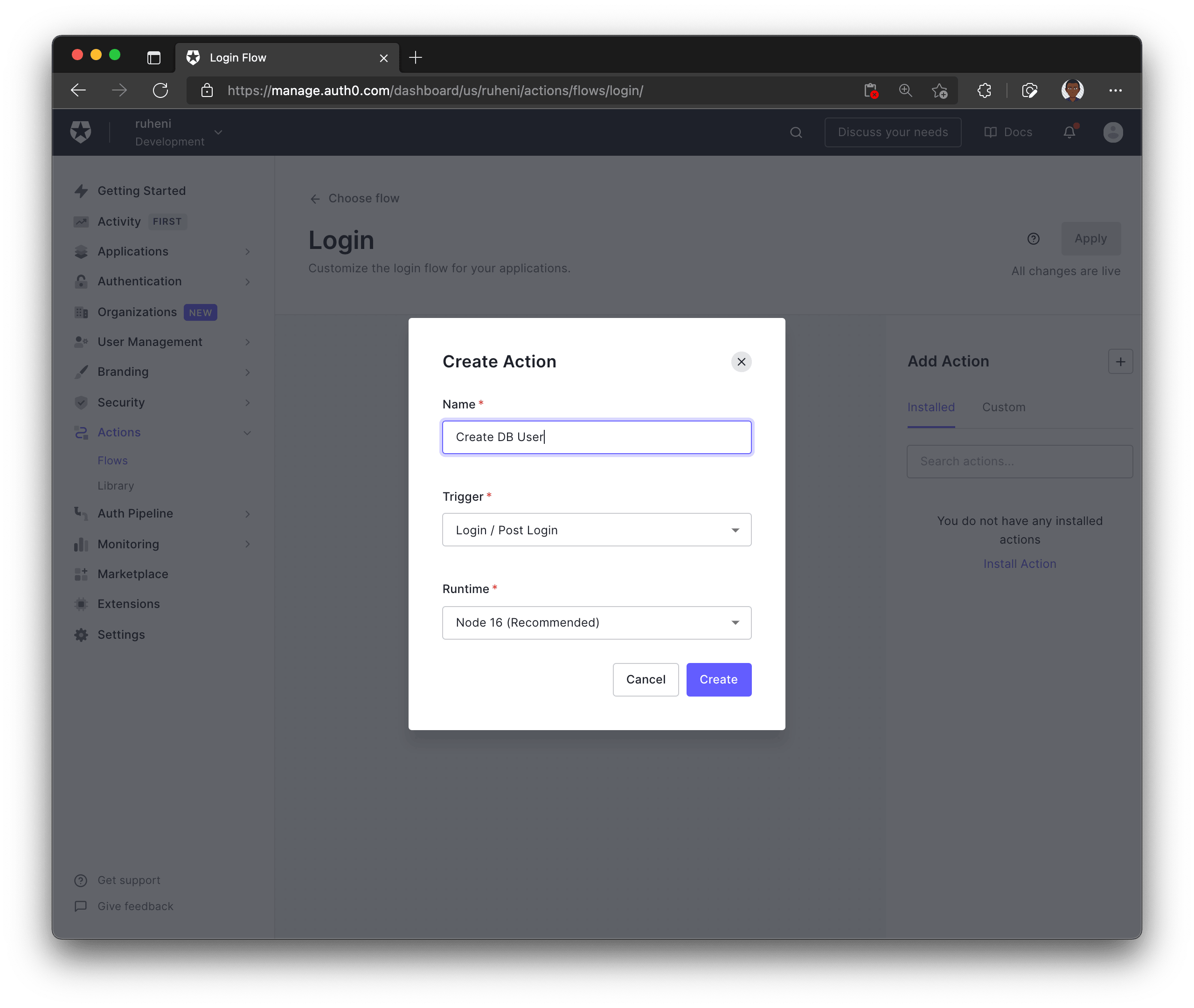
After completing the previous step, you will be able to manage your newly created Action.
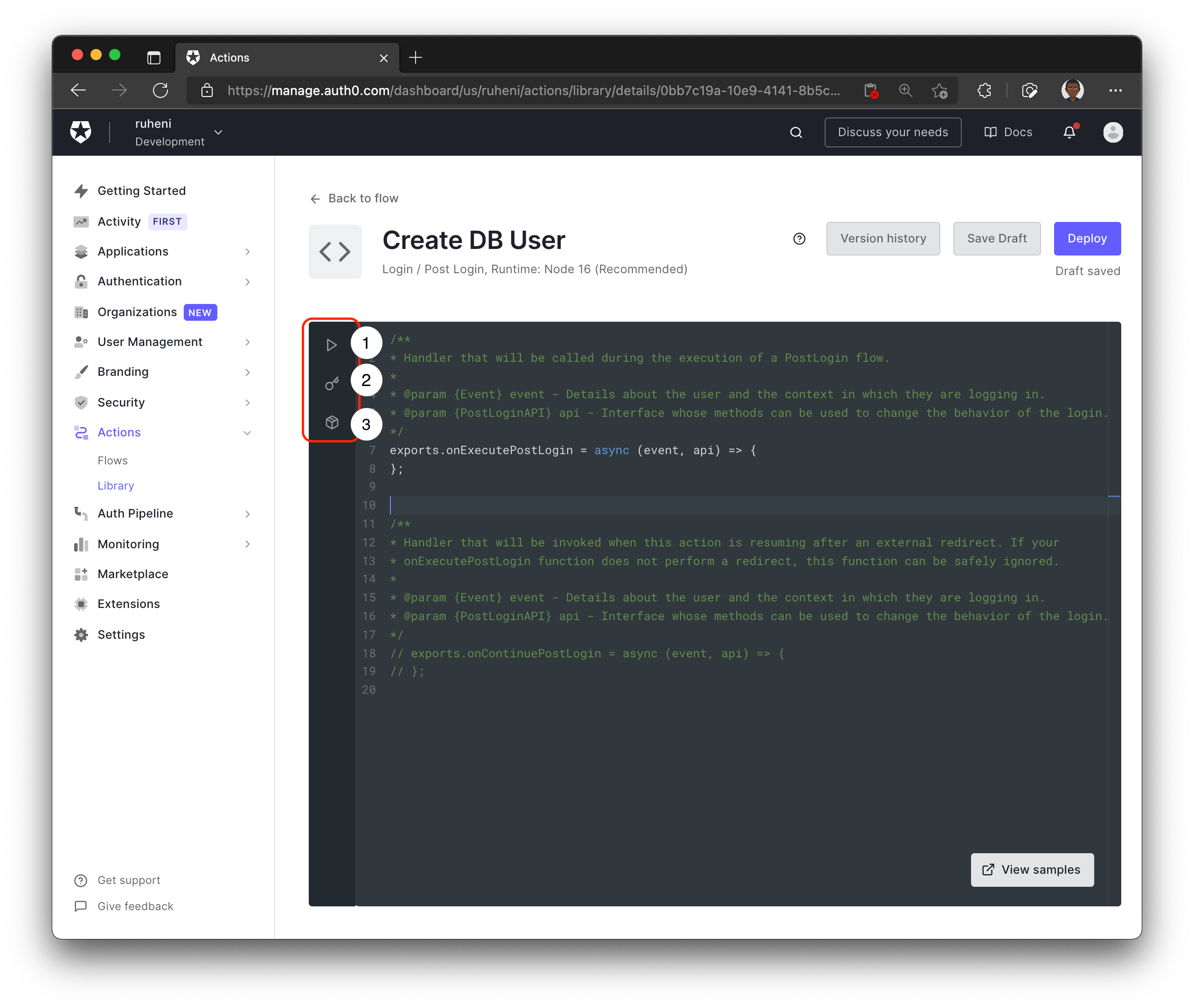
Here is a breakdown of the Auth0 Actions UI:
* **1** - Test your Action
* **2** - Define environment variables/secrets that will be used in the code
* **3** - Include modules that will be used in the Action's code
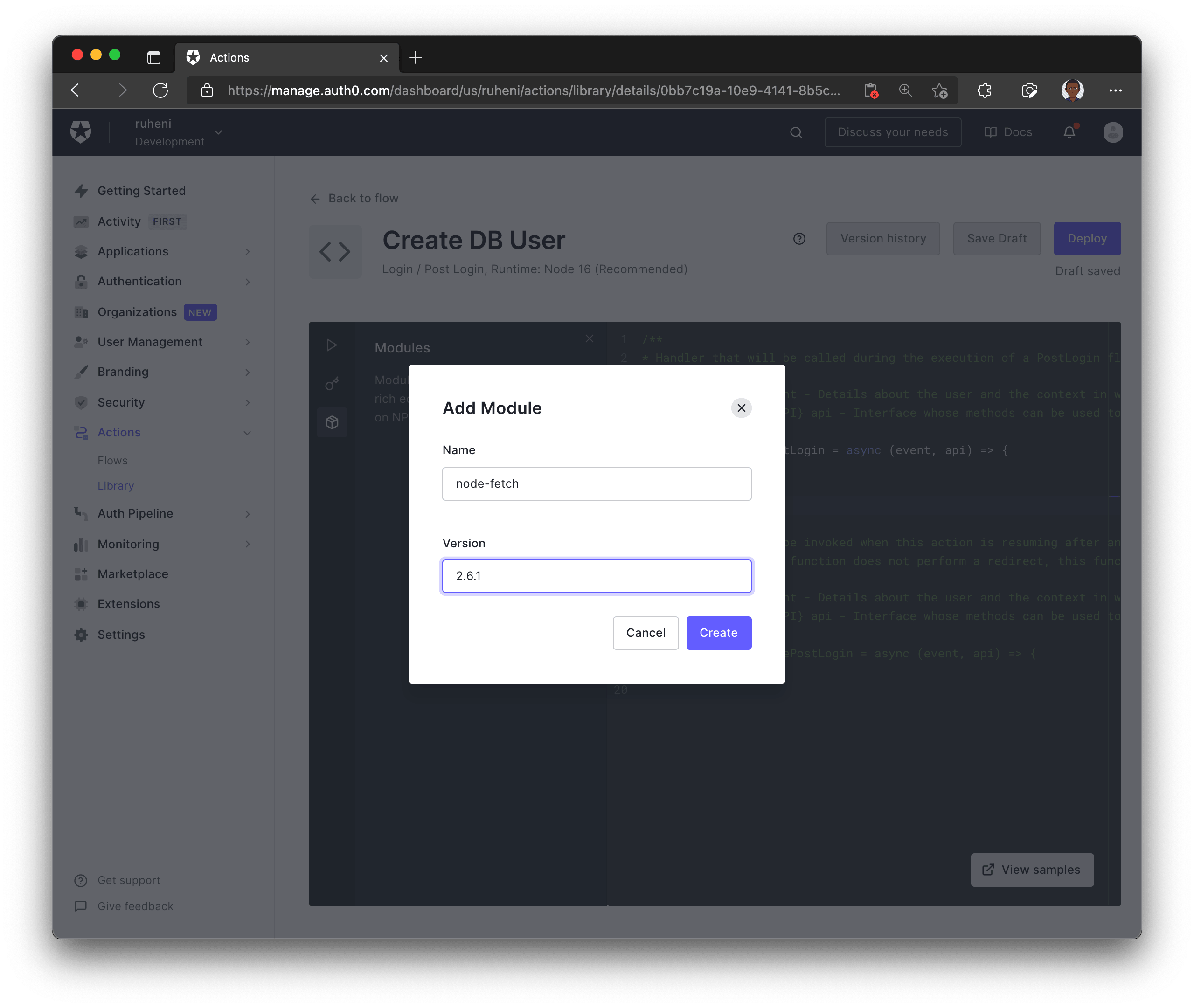
The first step is to include the `node-fetch` module version `2.6.1`. You will use it in your Action to send a request to an API endpoint – you will create this later. This endpoint will handle the logic of creating a user record in the database.
Next, define a secret that will be included in every request sent by the Action to your endpoint. This secret will ensure that the requests are coming from the Auth0 Action instead of another untrusted third party.
You can generate a random secret using the following command in your terminal:
```shell
openssl rand -hex 32
```
First, store this secret in the Auth0 dashboard with the key `AUTH0_HOOK_SECRET`.
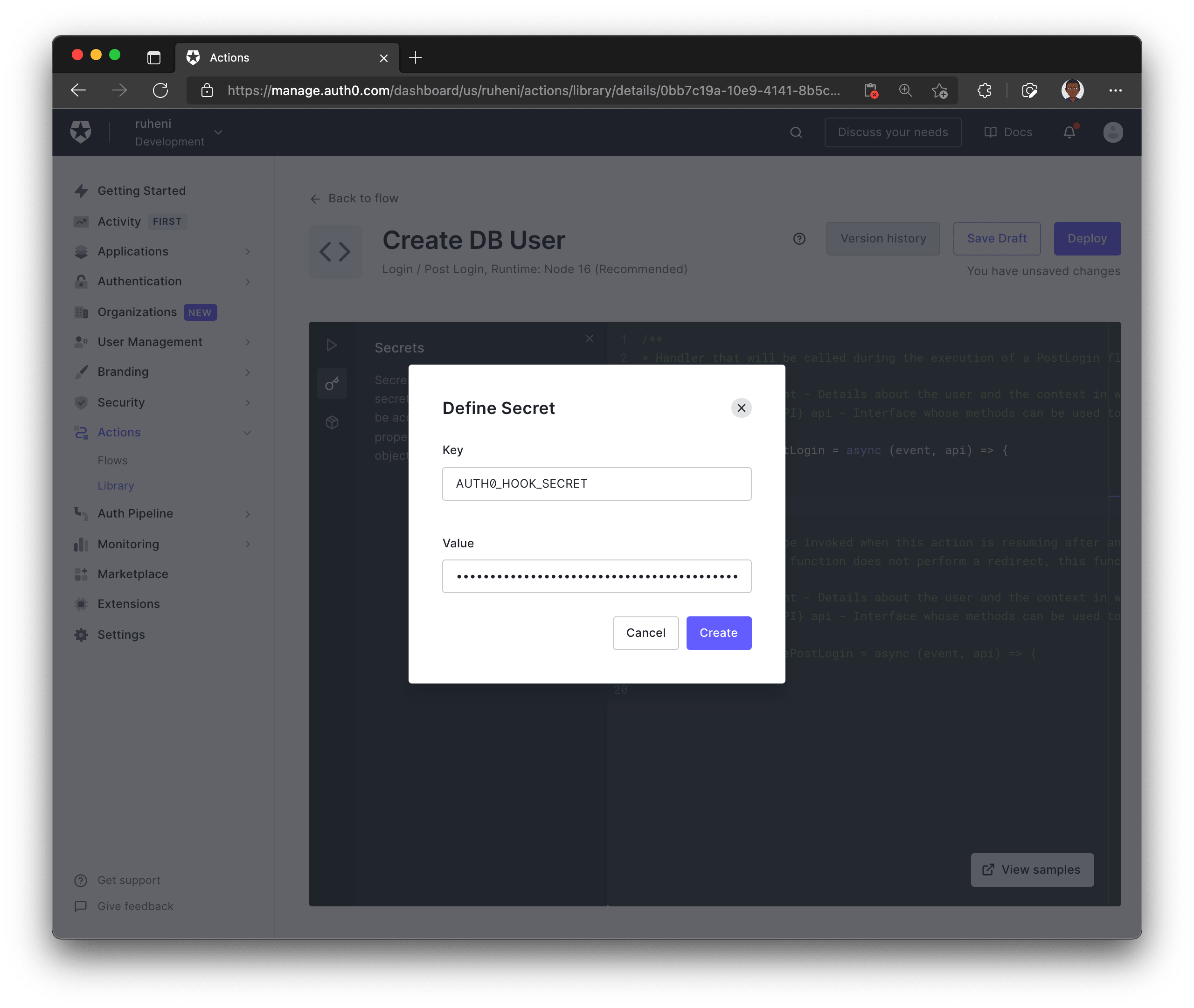
Now, also store the secret in your `.env` file.
```shell
AUTH0_HOOK_SECRET='' # same secret goes here
```

Finally, update the Action with the following code:
```js
const fetch = require('node-fetch')
exports.onExecutePostLogin = async (event, api) => {
// 1.
const SECRET = event.secrets.AUTH0_HOOK_SECRET
// 2.
if (event.user.app_metadata.localUserCreated) {
return
}
// 3.
const email = event.user.email
// 4.
const request = await fetch('http://localhost:3000/api/auth/hook', { // "localhost:3000" will be replaced before deploying this Action
method: 'post',
body: JSON.stringify({ email, secret: SECRET }),
headers: { 'Content-Type': 'application/json' },
})
const response = await request.json()
// 5.
api.user.setAppMetadata('localUserCreated', true)
}
```
1. Retrieves the `AUTH0_HOOK_SECRET` environment variable
2. Checks if the `localUserCreated` property on the user's `app_metadata`
3. Retrieves user's email from the login event – provided by Auth0
4. Sends a `POST` request to an API route – `http://localhost:3000/api/auth/hook`
5. Adds the `localUserCreated` property to the user's `app_metadata`
The `api.user.setAppMetadata` function allows you to add additional properties to a user's profile.
Before you deploy this action, there's one more thing left to do.
### Expose `localhost:3000` using Ngrok [#expose-localhost3000-using-ngrok]
The Action you created runs on Auth0's servers. It cannot connect to `localhost:3000` running on your computer. However, you can expose `localhost:3000` to the internet and enable it to receive requests from Auth0's servers using a tool called [Ngrok](https://ngrok.com/).
Ngrok will generate a URL to your localhost server that can be used in the Auth0 Action.
TODO: sign up for an account, get token from the dashboard
While your app is running, run the following command to expose `localhost:3000`:
```shell
npx ngrok http 3000 --authtoken "TOKEN"
```
> **Note**: Make sure to replace the `TOKEN` value with the token from Ngrok's dashboard.
The output on your terminal will resemble the following – but with different **Forwarding** URLs:
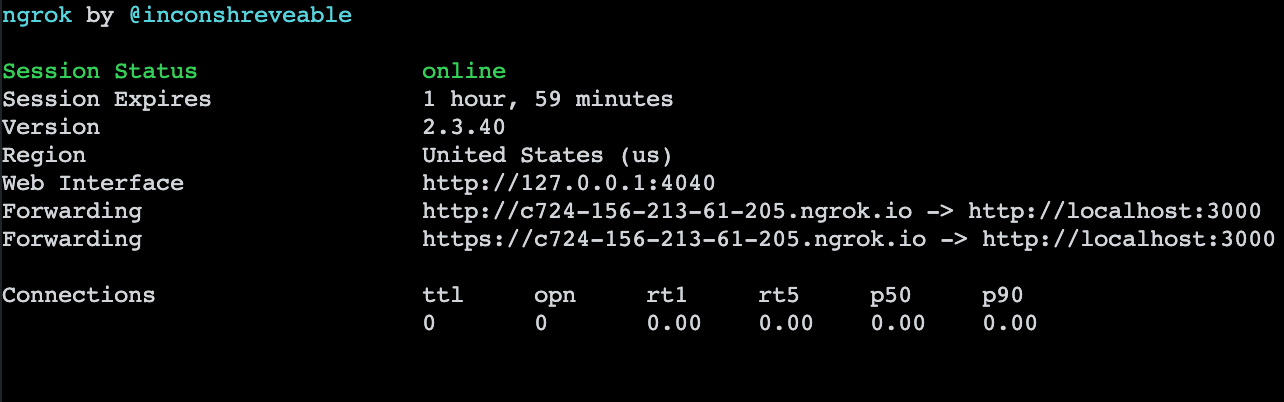
Copy the **Forwarding** URL, replace `localhost:3000` with your **Forwarding** URL in your Action and click **Deploy**.
Now that the action is deployed, go back to the **Login** flow by pressing the **Back to flow** button.
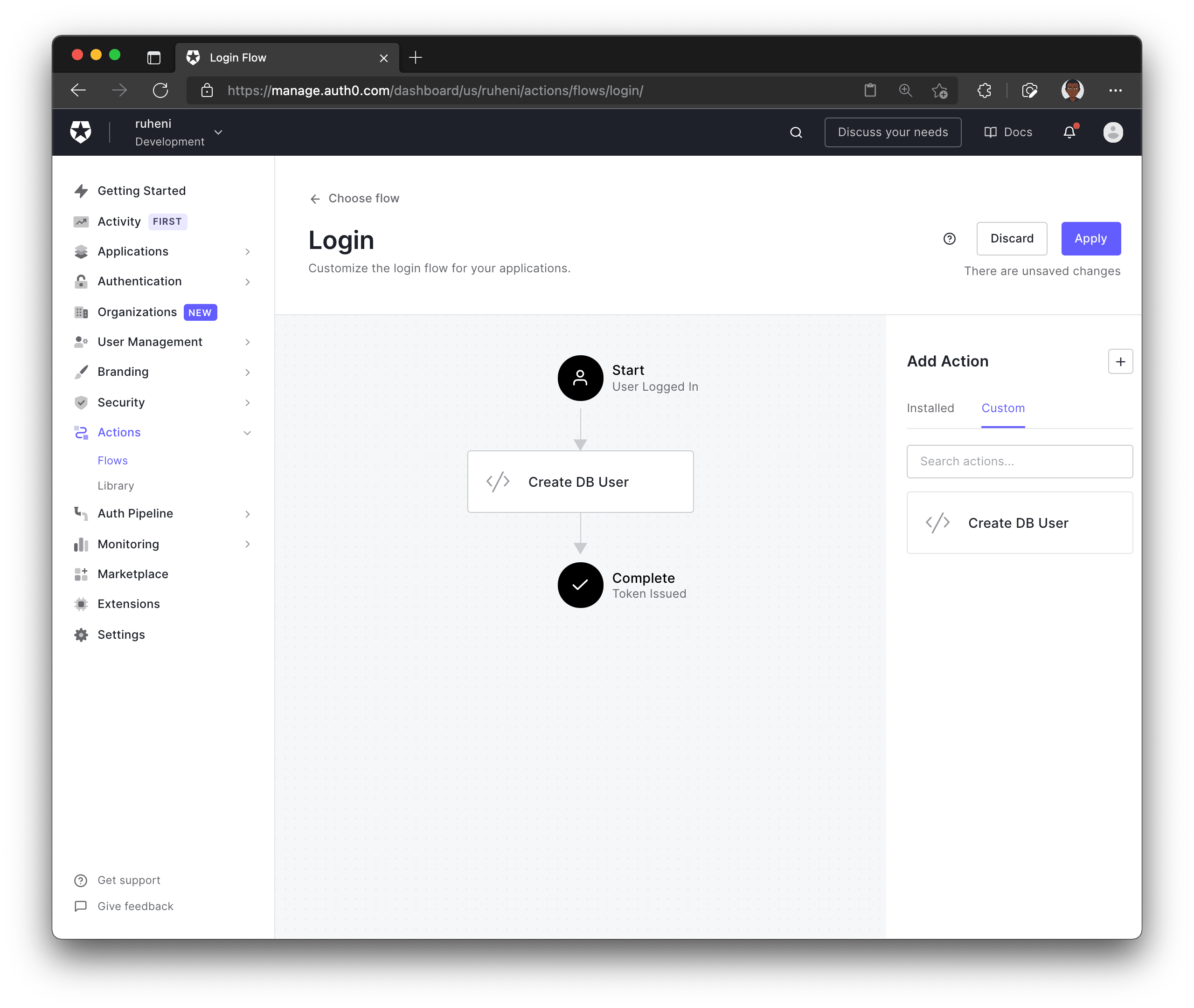
The final thing you need to do is add your newly created action to the **Login** flow. You will find the action underneath the **Custom** tab. To add the action to your flow, you can drag-and-drop it between **Start** and **Complete**. Then click **Apply** to save the changes.
### Define an API route for creating new users [#define-an-api-route-for-creating-new-users]
Create a `hook.ts` file in the `pages/api/auth/` folder and add the following code to it:
```ts
// pages/api/auth/hook.ts
import prisma from '../../../lib/prisma';
import type { NextApiRequest, NextApiResponse } from 'next';
const handler = async (req: NextApiRequest, res: NextApiResponse) => {
const { email, secret } = req.body;
// 1
if (req.method !== 'POST') {
return res.status(403).json({ message: 'Method not allowed' });
}
// 2
if (secret !== process.env.AUTH0_HOOK_SECRET) {
return res.status(403).json({ message: `You must provide the secret 🤫` });
}
// 3
if (email) {
// 4
await prisma.user.create({
data: { email },
});
return res.status(200).json({
message: `User with email: ${email} has been created successfully!`,
});
}
};
export default handler;
```
This endpoint does the following:
1. Validates the request is a `POST` request
2. Validates the `AUTH0_HOOK_SECRET` from the request body is correct
3. Validates that an email was provided in the request body
4. Creates a new user record
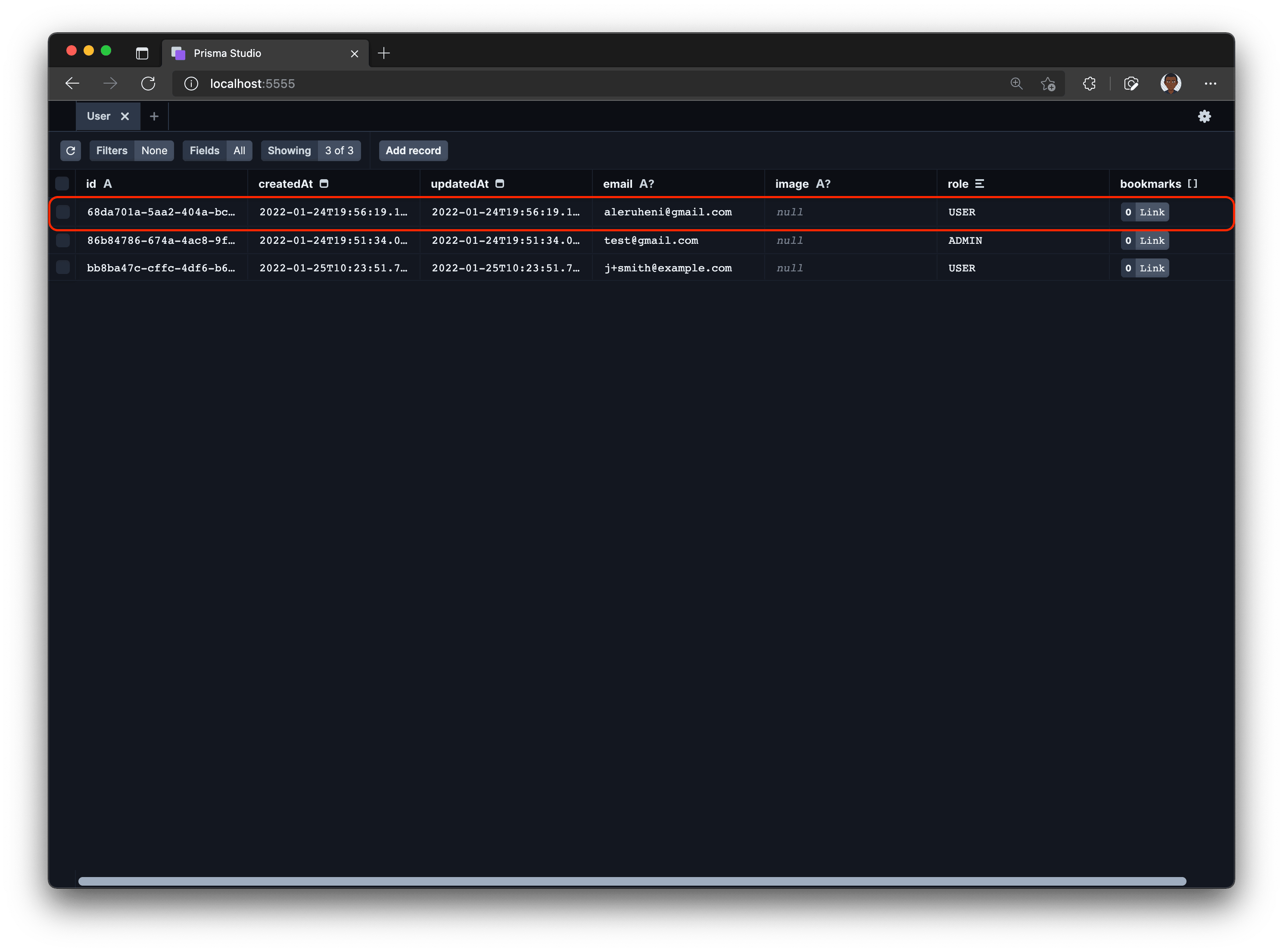
Once a user signs up to your application, the user's information will be synced to your database. You can view the newly created user in your database through Prisma Studio.
### Create links – auth protected page [#create-links--auth-protected-page]
Navigate to `graphql/builder.ts` file and update with the following snippet:
```ts
diff
// graphql/builder.ts
// ...code above remains unchanged
builder.queryType({
fields: (t) => ({
ok: t.boolean({
resolve: () => true,
}),
}),
});
+builder.mutationType({})
```
The above snippet registeres the `Mutation` type in the schema which allows you to define mutations in your GraphQL server.
Next, update `graphql/types/Link.ts` with the following mutation that adds the ability to create links:
```ts
// graphql/types/Link.ts
// ... code above remains unchanged
builder.mutationField("createLink", (t) =>
t.prismaField({
type: 'Link',
args: {
title: t.arg.string({ required: true }),
description: t.arg.string({ required: true }),
url: t.arg.string({ required: true }),
imageUrl: t.arg.string({ required: true }),
category: t.arg.string({ required: true }),
},
resolve: async (query, _parent, args, ctx) => {
const { title, description, url, imageUrl, category } = args
if (!(await ctx).user) {
throw new Error("You have to be logged in to perform this action")
}
return prisma.link.create({
...query,
data: {
title,
description,
url,
imageUrl,
category,
}
})
}
})
)
```
The `args` property defines the input required to create a new link. The mutation also checks if a user is logged in so only authenticated users can create links. Finally, the `create()` function from Prisma creates a new database record.
Install the following dependencies you'll use for form management and notifications:
```sh
npm install react-hook-form react-hot-toast
```
Next, create `pages/admin.tsx` page and add the following code. The code allows creation of a new link:
```tsx
// pages/admin.tsx
import React from 'react'
import { type SubmitHandler, useForm } from 'react-hook-form'
import { gql, useMutation } from '@apollo/client'
import toast, { Toaster } from 'react-hot-toast'
import { getSession } from '@auth0/nextjs-auth0'
import prisma from '../lib/prisma'
import type { GetServerSideProps } from 'next'
type FormValues = {
title: string;
url: string;
category: string;
description: string;
image: FileList;
}
const CreateLinkMutation = gql`
mutation createLink($title: String!, $url: String!, $imageUrl: String!, $category: String!, $description: String!) {
createLink(title: $title, url: $url, imageUrl: $imageUrl, category: $category, description: $description) {
title
url
imageUrl
category
description
}
}
`
const Admin = () => {
const {
register,
handleSubmit,
formState: { errors },
reset,
} = useForm()
const [createLink, { loading, error }] = useMutation(CreateLinkMutation, {
onCompleted: () => reset()
})
const onSubmit: SubmitHandler = async (data) => {
const { title, url, category, description } = data
const imageUrl = `https://via.placeholder.com/300`
const variables = { title, url, category, description, imageUrl }
try {
toast.promise(createLink({ variables }), {
loading: 'Creating new link..',
success: 'Link successfully created!🎉',
error: `Something went wrong 😥 Please try again - ${error}`,
})
} catch (error) {
console.error(error)
}
}
return (
Create a new link
)
}
export default Admin
export const getServerSideProps: GetServerSideProps = async ({ req, res }) => {
const session = await getSession(req, res);
if (!session) {
return {
redirect: {
permanent: false,
destination: '/api/auth/login',
},
props: {},
}
}
return {
props: {},
};
}
```
The `onSubmit` function passes the form values to the `createLink` mutation. A toast will be shown as the mutation is being executed – success, loading, or error.
In `getServerSideProps`, if there is no session, you are redirecting the user to the login page. If a user record that matches the email of the logged-in user is found, the `/admin` page is rendered.
Update `Header.tsx` file by adding a **+ Create** button authenticated users can use to create links.
```tsx
diff // components/Layout/Header.tsx
/** imports */
const Header = () => {
const { user } = useUser()
return (
{/* the rest of the header... */}
)
}
export default Header
```
You should now be able to create links! 🚀
### Bonus: protecting pages based on the user role [#bonus-protecting-pages-based-on-the-user-role]
You can tighten the authentication by ensuring only admin users can create links.
Firstly, update the `createLink` mutation to check a user's role:
```ts
// graphql/types/Link.ts
builder.mutationField("createLink", (t) =>
t.prismaField({
type: 'Link',
args: {
title: t.arg.string({ required: true }),
description: t.arg.string({ required: true }),
url: t.arg.string({ required: true }),
imageUrl: t.arg.string({ required: true }),
category: t.arg.string({ required: true }),
},
resolve: async (query, _parent, args, ctx) => {
const { title, description, url, imageUrl, category } = args
if (!(await ctx).user) {
throw new Error("You have to be logged in to perform this action")
}
const user = await prisma.user.findUnique({
where: {
email: (await ctx).user?.email,
}
})
if (!user || user.role !== "ADMIN") {
throw new Error("You don have permission ot perform this action")
}
return prisma.link.create({
...query,
data: {
title,
description,
url,
imageUrl,
category,
}
})
}
})
)
```
Update `admin.tsx` page by adding the role check in your `getServerSideProps` to redirect users that are not admins. Users without the `ADMIN` role will be redirected to the `/404` page.
```tsx
// pages/admin.tsx
export const getServerSideProps: GetServerSideProps = async ({ req, res }) => {
const session = await getSession(req, res);
if (!session) {
return {
redirect: {
permanent: false,
destination: '/api/auth/login',
},
props: {},
};
}
const user = await prisma.user.findUnique({
select: {
email: true,
role: true,
},
where: {
email: session.user.email,
},
});
if (!user || user.role !== 'ADMIN') {
return {
redirect: {
permanent: false,
destination: '/404',
},
props: {},
};
}
return {
props: {},
};
};
```
The default role assigned to a user when signing up is `USER`. So if you try to go to the `/admin` page, it will no longer work.
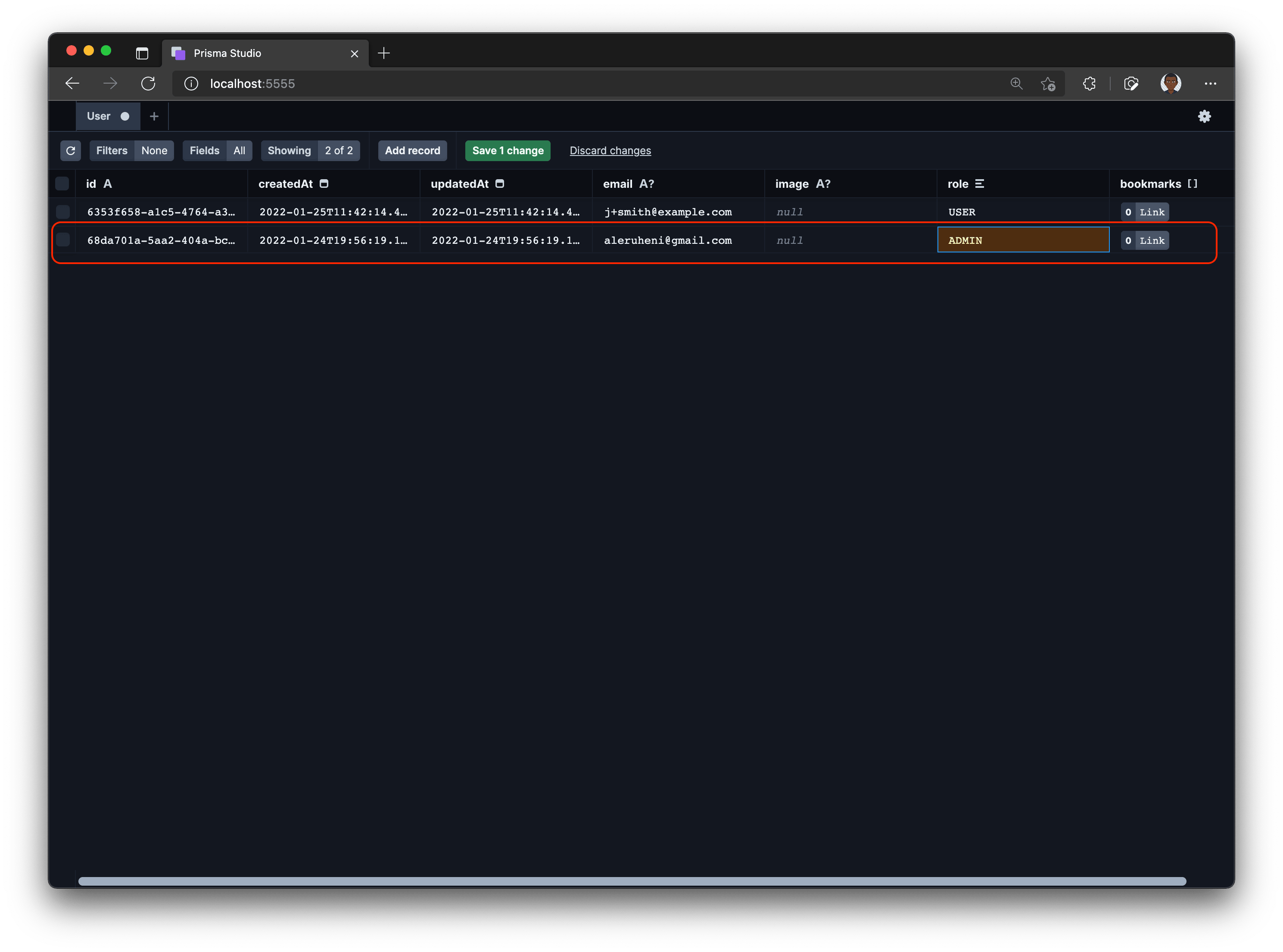
You can change this by modifying the `role` field of the user in the database. This is very easy to do in Prisma Studio.
First start Prisma Studio by running `npx prisma studio` in the terminal. Then click the **User** model and find the record matching the current user. Now, go ahead and update your user role from `USER` to `ADMIN`. Save your changes by pressing the **Save 1 change** button.
Navigate to the `/admin` page of your application and voila! You can now create links again.
## Summary and next steps [#summary-and-next-steps]
In this part, you learned how to add authentication and authorization to a Next.js app using Auth0 and how you can use Auth0 Actions to add users to your database.
Stay tuned for [the next part](https://www.prisma.io/blog/fullstack-nextjs-graphql-prisma-4-1k1kc83x3v) where you'll learn how to add image upload using AWS S3.