# Build A Fullstack App with Remix, Prisma & MongoDB: Project Setup
URL: https://www.prisma.io/blog/fullstack-remix-prisma-mongodb-1-7d0bftxbmb6r
Published: 2022-04-25
Authors: Sabin Adams
Tags: education
Series: Build A Fullstack App with Remix, Prisma & MongoDB
Description: Learn how to build and deploy a fullstack application using Remix, Prisma, and MongoDB. In this article, we will be setting up our project, the MongoDB instance, Prisma, and begin modeling out some of our data for the next section of this series.
Welcome to the first article in this series, where you will take a look at how to build a full-stack application from the ground up using MongoDB, Prisma, and Remix! In this article, you will be setting up your project, the MongoDB instance, Prisma, and begin modeling out some of our data for the next section of this series.
## Table Of Contents [#table-of-contents]
* [Introduction](#introduction)
* [Technologies you will use](#technologies-we-will-use)
* [What this series covers](#what-this-series-covers)
* [What you will learn today](#what-you-will-learn-today)
* [Prerequisites](#prerequisites)
* [Assumed knowledge](#assumed-knowledge)
* [Development environment](#development-environment)
* [Generate the Remix application](#generate-the-remix-application)
* [Take a look at the starter project](#take-a-look-at-the-starter-project)
* [Set up TailwindCSS](#set-up-tailwindcss)
* [Create a MongoDB instance](#create-a-mongodb-instance)
* [Set up Prisma](#set-up-prisma)
* [Initialize and configure Prisma](#initialize-and-configure-prisma)
* [Set your environment variable](#set-your-environment-variable)
* [Model the data](#model-the-data)
* [Push schema changes](#push-schema-changes)
* [Summary & What's next](#summary--whats-next)
[Watch the video on YouTube](https://www.youtube.com/watch?v=4tXGRe5CDDg)
## Introduction [#introduction]
The goal of this series is to take an in-depth look at how to start, develop and deploy an application using the technologies mentioned below and hopefully highlight just how easy it is to do so with the rich feature sets these tools provide!
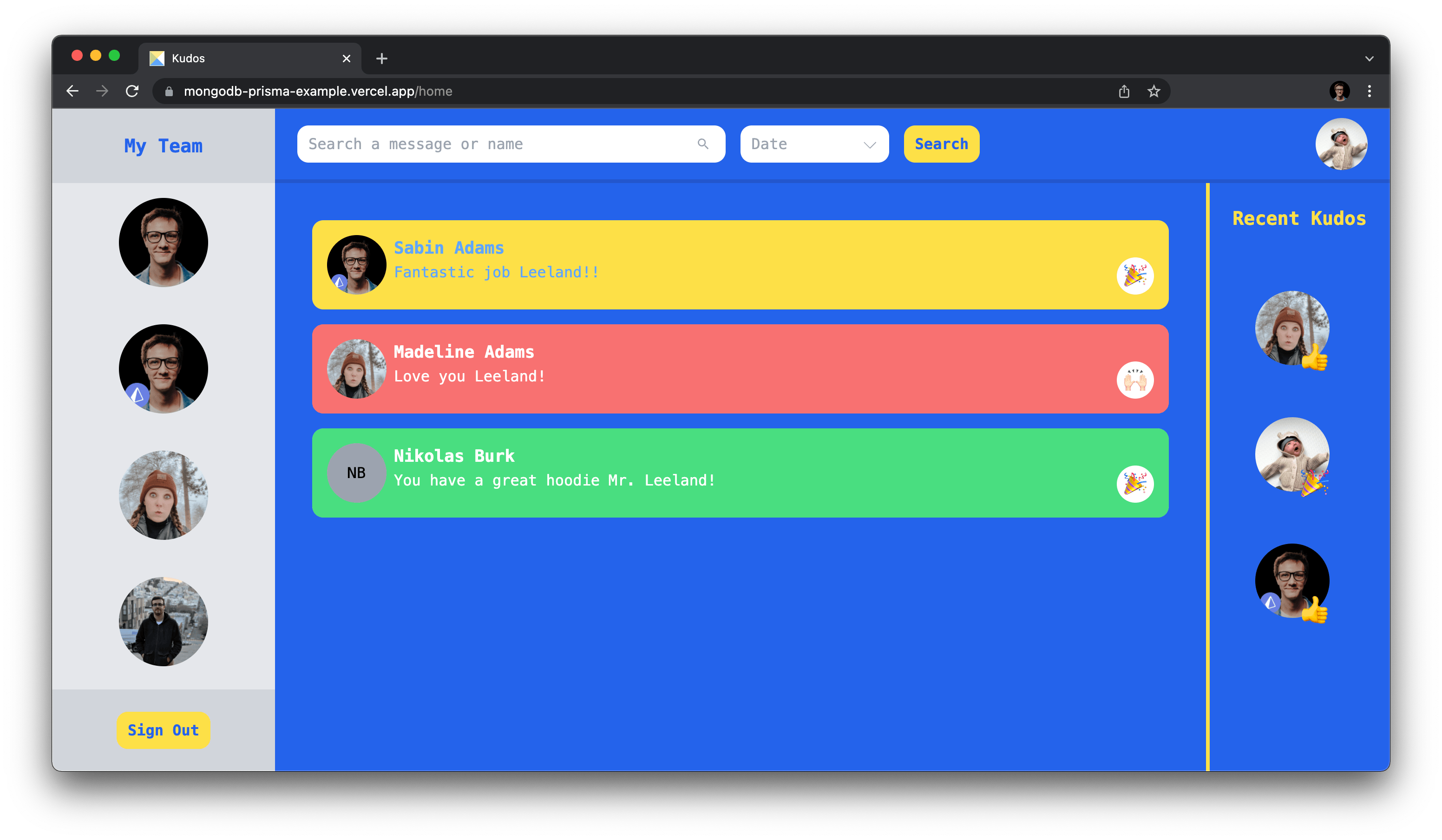
By the end of this series, you will have built and deployed an application called "Kudos", a site where users can create an account, log in, and give kudos to other users of the site. It will end up looking something like this:
### Technologies we will use [#technologies-we-will-use]
Throughout this series you will be using the following tools to build this application:
* [MongoDB](https://www.mongodb.com/) as the database
* [Prisma](https://www.prisma.io/) as your Object Document Mapper (ODM)
* [Remix](https://remix.run/) as the React framework
* [TailwindCSS](https://tailwindcss.com/) for styling the application
* [AWS](https://aws.amazon.com/) S3 for storing user-uploaded images
* [Vercel](https://vercel.com/) for deploying the application
### What this series covers [#what-this-series-covers]
You will be diving into every aspect of building this application, including:
* Database configuration
* Data modeling
* Authentication with session-based auth
* Create, Read, Update and Delete (CRUD) operations, along with the filtering and sorting of data using Prisma
* Image uploads using AWS S3
* Deploying to Vercel
### What you will learn today [#what-you-will-learn-today]
In this first article, you will go through the process of starting up a Remix project, setting up a MongoDB database using Mongo's [Atlas](https://www.mongodb.com/atlas/database) platform, installing Prisma, and beginning to model out some of the data for the next section of this series. By the end, you should have a strong foundation to continue building the rest of your application on.
## Prerequisites [#prerequisites]
### Assumed knowledge [#assumed-knowledge]
While this series is meant to guide you through the development of a fullstack application, the following previous knowledge will be assumed:
* Experience working in a JavaScript ecosystem
* Experience with [React](https://reactjs.org/), as Remix is a framework built on React
* A basic understanding of "schemaless" database concepts, specifically with MongoDB
* A basic understanding of working with Git
### Development environment [#development-environment]
In order to follow along with the examples provided, you will be expected to ...
* ... have [Node.js](https://nodejs.org) installed.
* ... have [Git](https://git-scm.com/downloads) installed.
* ... have the [TailwindCSS VSCode Extension](https://marketplace.visualstudio.com/items?itemName=bradlc.vscode-tailwindcss) installed. *(optional)*
* ... have the [Prisma VSCode Extension](https://marketplace.visualstudio.com/items?itemName=Prisma.prisma) installed. *(optional)*
> **Note**: The optional extensions add some really nice intellisense and syntax highlighting for Tailwind and Prisma.
## Generate the Remix application [#generate-the-remix-application]
The very first thing you will need to do is initialize a Remix application. [Remix](https://remix.run/) is a fullstack web framework that allows you to easily build entire React applications without having to worry about the application's infrastructure.
It helps you to focus on developing your applications rather than spending time managing multiple areas of the stack separately and orchestrating their interactions.
It also provides a nice set of tools you will make use of to aid in otherwise tedious tasks.
To start off a Remix project, run the following command in a location where you would like this project to live:
```shell
npx create-remix@latest kudos
```
This will scaffold a starter project for you and ask you a couple of questions. Choose the following options to let Remix know you want a blank project using TypeScript and you intend to deploy it to Vercel.
* What type of app do you want to create? **Just the basics**
* Where do you want to deploy? Choose Remix if you're unsure, it's easy to change deployment targets. **Vercel**
* TypeScript or JavaScript? **TypeScript**
* Do you want me to run npm install? **Yes**
### Take a look at the starter project [#take-a-look-at-the-starter-project]
Once the project is set up, go ahead and pop it open by either opening the project in your code editor or by running the command `code .` within that folder in your terminal if you are using [VSCode's CLI](https://code.visualstudio.com/docs/editor/command-line).
You will see the generated boilerplate project with a file structure that looks like this:
```
│── app
│ ├── entry.client.tsx
│ ├── entry.server.tsx
│ ├── root.tsx
│ └── routes
│ ├── README.md
│ └── index.tsx
├── node_modules
├── package-lock.json
├── package.json
├── public
│ └── favicon.ico
├── remix.config.js
├── remix.env.d.ts
├── server.js
├── tsconfig.json
├── README.md
└── vercel.json
```
For the majority of this series, you will be working within the `app` directory, which will hold all of the custom code for this application.
Any file within `./app/routes` will be turned into a route. For example, assuming your application is running on `localhost:3000`, the `./app/routes/index.tsx` file will result in a generated route at `localhost:3000/`. If you were to create another file at `app/routes/home.tsx`, Remix would generate a `localhost:3000/home` route in your site.
This is one of the magical pieces of Remix that makes development so easy! Of course, there are a lot more powerful features along with this basic example. If you are curious, check out their [docs](https://remix.run/docs/en/v1/guides/api-routes) on the routing capabilities.
> **Note**: You can read more about Remix's routing [here](https://remix.run/docs/en/v1/tutorials/jokes#routes). You will also be using other routing features such as [nested routes](https://remix.run/docs/en/v1/guides/routing#what-are-nested-routes) and [resource routes](https://remix.run/docs/en/v1/guides/resource-routes) later on in the series!
If you run this project with the command `npm run dev` and head over to [http://localhost:3000/](http://localhost:3000/), you should see the basic starter application.
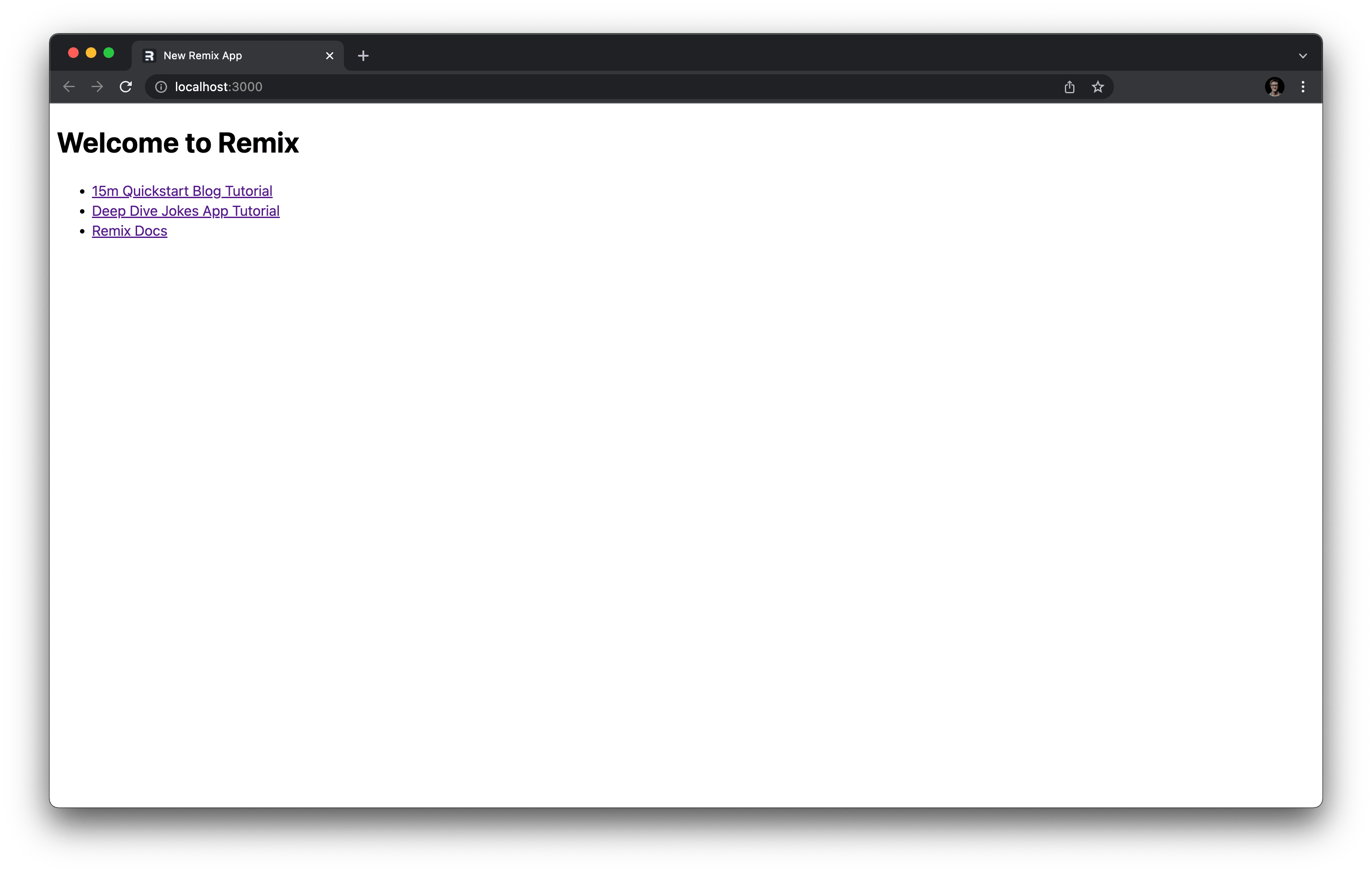
Great! Your basic project is started up and Remix has already scaffolded out many of the pieces you would normally have had to set up manually, such as the routing and build process. Now you will move on to setting up TailwindCSS so you can make the application look nice!
## Set up TailwindCSS [#set-up-tailwindcss]
[TailwindCSS](https://tailwindcss.com/) provides a robust set of utility classes and functions that will help you quickly build beautiful user interfaces that are easily customizable to fit your custom design needs. You will be making use of TailwindCSS for all of the styling in this application.
Tailwind has a great [guide](https://tailwindcss.com/docs/guides/remix) that goes through the steps of configuring it in a Remix project. You will be guided through those steps below:
To start things off, there are a few dependencies you will need in order to use Tailwind:
```shell
npm install -D tailwindcss postcss autoprefixer concurrently
```
This will install the following development dependencies:
* [`tailwindcss`](https://tailwindcss.com/): The command-line interface *(CLI)* that allows you to initialize a Tailwind configuration.
* [`postcss`](https://postcss.org/): TailwindCSS is a PostCSS plugin and relies on PostCSS to be built.
* [`autoprefixer`](https://www.npmjs.com/package/autoprefixer): A PostCSS plugin used to add browser-specific prefixes to your generated CSS automatically. This is required by TailwindCSS.
* [`concurrently`](https://www.npmjs.com/package/concurrently): This allows you to run your Tailwind build process alongside the Remix build process.
Once those are installed, you can initialize Tailwind in the project:
```shell
npx tailwindcss init -p
```
This will generate two files:
* `tailwind.config.js`: This is where you can tweak and extend TailwindCSS. See all of the options [here](https://tailwindcss.com/docs/configuration).
* `postcss.config.js`: [PostCSS](https://postcss.org/) is a CSS transpiler. This file is where you can add plugins.
When a build is run, Tailwind will scan through the codebase to determine which of its utility classes it needs to bundle into its generated output. You will need to let Tailwind know which files it should look at to determine this. In `tailwind.config.js`, add the following glob pattern to the `content` key:
```js
diff
// tailwind.config.js
module.exports = {
content: [
+ "./app/**/*.{js,ts,jsx,tsx}",
],
theme: {
extend: {},
},
plugins: [],
}
```
This will tell Tailwind that any file inside of the `app` folder with the provided extensions should be scanned through for keywords and class names that Tailwind will pick up on to generate its output file.
Next, in `package.json` update your `scripts` section to include a build process for Tailwind when the application is built and when the development server runs. Add the following scripts:
```json
// package.json
{
"scripts": {
"build": "npm run build:css && remix build",
"build:css": "tailwindcss -m -i ./styles/app.css -o app/styles/app.css",
"dev": "concurrently \"npm run dev:css\" \"remix dev\"",
"dev:css": "tailwindcss -w -i ./styles/app.css -o app/styles/app.css"
}
}
```
You may notice a few of the scripts are pointing to a file at `./styles/app.css` that does not exist yet. This will be Tailwind's source file when it is built and where you will import the various [functions and directives](https://tailwindcss.com/docs/functions-and-directives) Tailwind will use.
Go ahead and create that source file at `./styles/app.css` and add each of Tailwind's [layers](https://tailwindcss.com/docs/adding-custom-styles#using-css-and-layer) using the [`@tailwind`](https://tailwindcss.com/docs/functions-and-directives#tailwind) directive:
```css
/* ./styles/app.css */
@tailwind base;
@tailwind components;
@tailwind utilities;
```
Now when the application is run or built, your `scripts` will also kick off the process to run Tailwind's scanning and building process. The result of this will be outputted into `app/styles/app.css`.
That file is what you will import into your Remix application to allow you to use Tailwind in your code!
In `app/root.tsx`, import the generated stylesheet and export a [`links`](https://remix.run/docs/en/v1/api/conventions#links) function to let Remix know you have an asset you want to be imported into all of your modules when the application is built:
```tsx
// ./app/root.tsx
// 1
import type { MetaFunction, LinksFunction } from "@remix-run/node";
// 2
import styles from './styles/app.css';
// ...
// 3
export const links: LinksFunction = () => {
return [{ rel: 'stylesheet', href: styles }]
}
// ...
```
The code above will:
1. Import the type for Remix's `links` function.
2. Import the generated stylesheet.
3. Export a function named `links`, which follows a convention Remix picks up on and uses to import assets into all modules.
> **Note**: If you had exported a `links` function within an individual route file rather than the `root.tsx` file, it would be load the assets returned on that route only. For more info on asset imports and conventions, check out Remix's [docs](https://remix.run/docs/en/v1/api/conventions#asset-url-imports).
Now go into the `./app/routes/index.tsx` file and replace its contents with the following sample to make sure Tailwind is set up correctly:
```tsx
// ./app/routes/index.tsx
export default function Index() {
return (
TailwindCSS Is Working!
)
}
```
You should see a screen that looks something like this:

> **Note**: If you do not see Tailwind's styles being applied to your page, you may need to restart your development server.
If that looks good, you have successfully configured TailwindCSS and can move on to the next step, setting up the database!
## Create a MongoDB instance [#create-a-mongodb-instance]
In this project, you will be using Prisma to interact with a MongoDB database. Before you configure Prisma, however, you will need a MongoDB instance to connect to!
You will set up a MongoDB cluster using Mongo's [Atlas](https://www.mongodb.com/atlas) cloud data platform.
> **Note**: You could, of course, set up a MongoDB instance any way you are comfortable. Atlas, however, provides the easiest and quickest experience. The only requirement by Prisma is that your MongoDB is deployed with a [replica set](https://www.mongodb.com/docs/manual/tutorial/deploy-replica-set/).
Head over to the Atlas home page linked above. If you don't already have an account, you'll want to create one.
### Already had an account? Follow these additional steps:
If you will be using an existing account, head to the dashboard. From there you will see a dropdown in the top left corner of the screen. If you pop that open you will see the option New Project.

Once you click on that, hit the **Build a Database** button.

From there you should be able to follow along with the rest of the steps below.
You should land on a screen with a few options. Choose the **Free** option for the purposes of this series. Then hit the **Create** button:

When you select that option, you will be brought to a page that allows you to configure the cluster that will be generated. For your application, you can use the default settings. Just click **Create Cluster** near the bottom right of the page.

This will kick off the provisioning and deployment of your MongoDB cluster! All you need now is a database user and a way to connect to the database. Fortunately, MongoDB will walk you through this setup during their quickstart process.
You will see a few prompts that help you make these configurations. Follow the prompts to create a new user.

Then, in the **Where would you like to connect from?** section, hit **Add My Current IP Address** to whitelist your development machine's IP address, allowing it to connect to the database.

With those steps completed, your database should finish its provisioning process within a few minutes *(at most)* and be ready for you to play with!
## Set up Prisma [#set-up-prisma]
Now that you have a MongoDB database to connect to, it's time to set up Prisma!
### Initialize and configure Prisma [#initialize-and-configure-prisma]
The first thing you will want to do is install the [Prisma CLI](https://www.prisma.io/docs/orm/v7/reference/prisma-cli-reference) as a development dependency. This is what will allow you to run various Prisma commands.
```shell
npm i -D prisma@7.9.1
```
To initialize Prisma within the project, simply run:
```shell
npx prisma init --datasource-provider mongodb
```
This will create a few different files in your project. You will see a `prisma` folder with a `schema.prisma` file inside of it. This is where you will define your schema and model out your data.
It will also generate a `.env` file automatically if one did not previously exist with a sample environment variable that will hold your database's connection string.
If you open up `./prisma/schema.prisma` you should see a default starter template of a Prisma schema.
```prisma
// ./prisma/schema.prisma
// This is your Prisma schema file,
// learn more about it in the docs: https://pris.ly/d/prisma-schema
generator client {
provider = "prisma-client-js"
}
datasource db {
provider = "mongodb"
url = env("DATABASE_URL")
}
```
> **Note**: This file is written in PSL (Prisma Schema Language), which allows you to map out your schema. For more information on Prisma schemas and PSL, check out the [Prisma docs](https://www.prisma.io/docs/orm/contract-authoring/psl-syntax).
In the `url` of the [`datasource`](https://www.prisma.io/docs/orm/v7/prisma-schema/overview/data-sources) block, you can see it references the `DATABASE_URL` environment variable from the `.env` file using the `env()` function PSL provides. Prisma uses [dotenv](https://www.npmjs.com/package/dotenv) under the hood to expose those variables to Prisma.
### Set your environment variable [#set-your-environment-variable]
You will now give Prisma the correct connection string in your [environment variable](https://www.prisma.io/docs/orm/v7/more/dev-environment/environment-variables) so it will be able to connect to the database.
To find your connection string on the Atlas dashboard hit the **Connect** button.

This will pop open a modal. Hit the **Connect your application** option.

This should reveal a few bits of information. The piece you care about is the connection string.

In your `.env` file, replace the default connection string with your MongoDB connection string. This connection string should follow this format:
```shell
mongodb+srv://USERNAME:PASSWORD@HOST:PORT/DATABASE
```
After pasting in your connection string and modifying it to match the above format, you should be left with a string that looks like this:
```shell
mongodb+srv://sadams:@cluster0.vv1we.mongodb.net/kudos?retryWrites=true&w=majority
```
> **Note**: Notice the `kudos` database name. You can put any name you want for your `DATABASE` here. MongoDB will automatically create the new database if it does not already exist.
>
> For more details on connecting to your MongoDB database, check out the [docs](https://www.prisma.io/docs/prisma-orm/add-to-existing-project/mongodb).
### Model the data [#model-the-data]
Now you can begin to think about your data model and start to map out the [collections](https://www.mongodb.com/docs/compass/current/collections/) for your database. Note that you are *not* going to model out your entire dataset in this article. Instead, you will iteratively build the Prisma schema throughout the entire series.
For this section, however, create a `User` model you will use in the next section of this series which handles setting up authentication.
Over in `prisma/prisma.schema`, add a new [`model`](https://www.prisma.io/docs/orm/v7/prisma-schema/data-model/models#defining-models) to your schema named `User`. This will be where you define what a user should look like in the database.
```prisma
// ./prisma/schema.prisma
model User {
}
```
> **Note**: MongoDB is a schemaless database built for flexible data so it may seem counterintuitive to define a "schema" for the data you are storing in it. As schemaless databases grow and evolve, however, the problem occurs where it becomes difficult to keep track of what data lives where while accounting for legacy data shapes. Because of this, defining a schema may save some headaches in the long run.
Every Prisma model needs to have a unique `id` field.
```prisma
// ./prisma/schema.prisma
model User {
id String @id @default(auto()) @map("_id") @db.ObjectId
}
```
The code above will create an `id` field and let Prisma know this is a unique identifier with the [`@id`](https://www.prisma.io/docs/orm/v7/reference/prisma-schema-reference#id) attribute. Because MongoDB automatically creates an `_id` field for every collection, you will let Prisma know using the [`@map`](https://www.prisma.io/docs/orm/v7/reference/prisma-schema-reference#map) attribute that while you are calling this field `id` in the schema, it should map to the `_id` field in the database.
The code will also define the data type for your `id` field and set a default value of `auto()`, which will allow you to make use of MongoDB's automatically generated unique IDs.
> **Note**: When using Prisma with MongoDB, *every* model **must** have a unique identifier field defined exactly like this to properly map to the `_id` field MongoDB generates. The only part of this field definition that may vary in your schema is what you decide to name the field you map to the underlying `_id` field.
Now that you have an `id` field, go ahead and add some other useful data to the `User` model.
```prisma
// ./prisma/schema.prisma
model User {
id String @id @default(auto()) @map("_id") @db.ObjectId
createdAt DateTime @default(now())
updatedAt DateTime @updatedAt
email String @unique
password String
}
```
As you can see above, you will be adding two `DateTime` type fields that will keep track of when a user gets created and when it is updated. The [`@updatedAt`](https://www.prisma.io/docs/orm/v7/reference/prisma-schema-reference#updatedat) attribute will automatically update that field with a current timestamp any time that user is updated.
It will also add an `email` field of type `String` that must be unique, indicated by the [`@unique`](https://www.prisma.io/docs/orm/v7/reference/prisma-schema-reference#unique) attribute. This means no other user can have the same email.
Finally, you will have a password field which is just a plain string.
That's all you will need in the `User` model for now! You can now push this schema to MongoDB so you can see the collection it creates.
### Push schema changes [#push-schema-changes]
After making changes to our schema you can run the command:
```shell
npx prisma db push
```
This will push your schema changes to MongoDB, creating any new collections or indexes you have defined. For example, when you push your schema as it is now, you should see the following in the output:
```
Applying the following changes:
[+] Collection `User`
[+] Unique index `User_email_key` on ({"email":1})
```
Because MongoDB is *schemaless*, there is no real concept of *migrations*. A schemaless database's data can fluidly change and evolve as the application's scope grows and changes. This command simply creates the defined collections and indexes.

## Summary & What's next [#summary--whats-next]
In this article, you got your Remix application up and running, along with your MongoDB instance. You also set up Prisma and TailwindCSS in your project and began to model out the data you will use in the next section of this series.
In the next article you will learn about:
* Setting up session-based authentication in Remix
* Storing and modifying user data with Prisma and MongoDB
* Building a Login form
* Building a Signup form